This guide assumes you have already installed Town of Us: Mira
This guide assumes you have already downloaded the MiraOverloaded DLL. If you are having trouble downloading the DLL, join our Discord for support.
Steam
- Right-click Among Us in your steam library.
- Click
Manage>Browse Local Files - In File Explorer, navigate to your
Commonfolder. You can find this folder by looking at the top of File Explorer. Click the red square in the image below: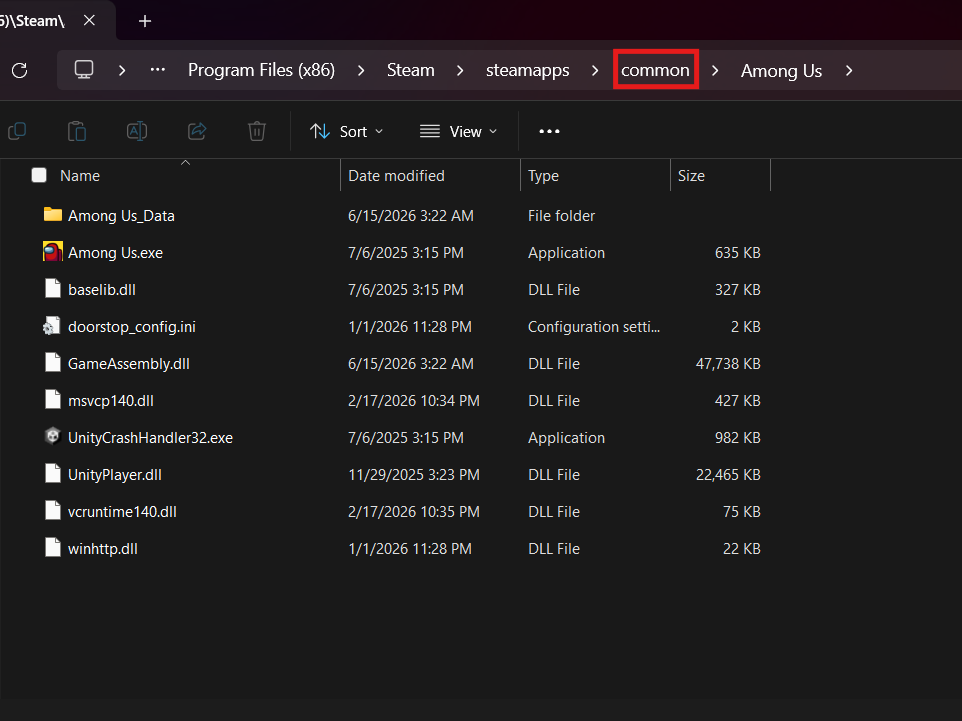
- Locate your Among Us install that includes Town of Us Mira.
- Once inside of your TOU install, navigate to
BepInEx>Plugins. You should see your mod files, including Mira itself, and various bundles. - Move
MiraOverloaded.dllinto this folder. - Relaunch the game and verify that the Sabotaged Among Us Modding logo shows up on the loading screen. If it doesn’t, join our Discord for support.
Epic Games
Make sure that you have not only installed Town of Us: Mira, but also EpicGamesStarter. Verify that it works and that you can launch base TOU Mira. You do not need this if you are using an alternate Epic launcher such as Heroic or Legendary.
- Make sure you’ve disabled auto-updating on Among Us. You can do this by uninstalling Among Us from your Epic library and during re-install uncheck the auto update option.
- Navigate to wherever you have Among Us installed. This will be different for everyone due to EpicGamesStarter/Heroic.
- Ensure that your install has TOU installed.
- Once inside of your TOU install, navigate to
BepInEx>Plugins. You should see your mod files, including Mira itself, and various bundles. - Move
MiraOverloaded.dllinto this folder. - Relaunch the game and verify that the Sabotaged Among Us Modding logo shows up on the loading screen. If it doesn’t, join our Discord for support. We do get the most problems with Epic users, unfortunately. You might also want to join the Town Of Us Discord Server if you’re having general install troubles.
Microsoft Store/Xbox App
- Open the Xbox App, right click Among Us and click
Manage - Go to the Files tab >
Browse... - Go to the
Contentfolder within the Among Us folder. Make sure you’ve already installed Town of Us: Mira inside this folder. - Once inside of your TOU install, navigate to
BepInEx>Plugins. You should see your mod files, including Mira itself, and various bundles. - Move
MiraOverloaded.dllinto this folder. - Relaunch the game and verify that the Sabotaged Among Us Modding logo shows up on the loading screen. If it doesn’t, join our Discord for support.
Itch.io
- In your Itch.io library, right-click Among Us, then click
Manage>Open folder in explorer - Find the Among Us folder that you have installed Town of Us: Mira to.
- Once inside of your TOU install, navigate to
BepInEx>Plugins. You should see your mod files, including Mira itself, and various bundles. - Move
MiraOverloaded.dllinto this folder. - Relaunch the game and verify that the Sabotaged Among Us Modding logo shows up on the loading screen. If it doesn’t, join our Discord for support.
Android
MiraOverloaded is not available on Starlight which is currently the only mod launcher for Android devices. Support for Starlight is planned eventually.
IOS, Console
Neither of these platforms are supported by Town of Us: Mira and therefore are not supported by MiraOverloaded.
Linux/MacOS
There are various ways to get mods on both of these platforms. join the Town Of Us Discord Server and look for the channel labeled #🌎│mira-information to find both more detailed install guides for Mira, and also general install guides for Linux and MacOS.